By clicking a retailer link you consent to third-party cookies that track your onward journey. This enables W? to receive an affiliate commission if you make a purchase, which supports our mission to be the UK's consumer champion.
7 habits that make you easier to scam
The way you use your phone, email and shopping accounts could all offer opportunities for fraudsters, so we've rounded up some simple ways to stay protected
With over a decade of experience at Which?, Tom covers everything from tech advice to money-saving tips, and highlights the best deals during major sales events.
Scammers are always looking for new ways to catch us out, but sometimes it's our everyday habits that make their job easier. From sharing personal details on social media to trusting callers without checking who they are, some seemingly harmless decisions could give fraudsters an advantage.
Fortunately, there are plenty of ways you can reduce the risks. At Which? Tech Support, our team of experts regularly helps members with suspicious messages, dodgy websites and other potential scams, so we've seen just how convincing these tricks can be.
Below, we explain what to watch out for and share some practical tips to help you stay one step ahead of scammers.
Get tech help from humans
Our friendly team can help you fix tech issues, stay safe online, and get more from your devices. Get 12 months of tech support and buying advice for £49 a year. We’ll help you take control of your tech.
Already a Tech Support member? For more help and 1-2-1 technical advice, including advice on malware and scams, go to our Tech Support online booking tool.
1. Sharing too much on social media
Social media is a great way to keep in touch with friends and family, but it's worth thinking carefully about how much personal information you're sharing. Details such as your birthday, location or the names of family members could help scammers piece together information about you.
Fraudsters might use these details to make scam messages seem more convincing or guess the answers to security questions linked to your online accounts. A scammer who knows the name of a family member could mention them in a message to make it seem genuine.
Take a few minutes to review your privacy settings on Facebook, Instagram and other social media accounts. Check who can see your posts, avoid accepting friend requests from people you don't know and never use publicly available personal details in your passwords or security questions.
Do this on Facebook and Instagram
To limit who can see your social media posts and personal information, follow these steps:
On Facebook – select your profile picture, then go to Settings & privacy > Privacy Checkup > Who can see what you share. Set future posts to Friends, review who can see your personal details and limit the audience for older posts.
On Instagram – open your profile (bottom right icon on the app), tap the three-line menu and select Account privacy. Turn on Private account so that only approved followers can see your posts.
Note that making your account private won't necessarily hide your profile picture, username or other basic details.
It's easy to assume a phone call is genuine when the number looks familiar, particularly if the person on the other end claims to represent your bank or another trusted organisation. But scammers can disguise their caller ID to make it appear as though they're calling from somewhere legitimate, such as HMRC or even the police.
When you answer an unexpected call, be wary of anyone asking for personal information, payment details or security codes. A scammer might claim there's suspicious activity on your bank account or insist you need to move your money somewhere safe.
Don't feel pressured into sharing information or making a decision on the spot, no matter how legitimate the caller sounds.
If something doesn't feel right, hang up and contact the organisation directly using a number from its official website. If the caller claims to be from your bank, leave it for at least five minutes or use a different phone, then dial 159 to reach your bank safely or use the number listed on the back of your card.
Built-in call screening features on some iPhones and Android phones can also help filter suspicious calls before you answer.
Try this on your mobile
To help identify suspicious callers before you answer:
On iPhone – go to Settings > Apps > Phone > Screen Unknown Callers. Select Ask Reason for Calling to have unknown callers explain why they're calling before your phone rings. This feature is available on supported iPhones running iOS 26 or later.
On Android – open the Phone app and go to Settings > Caller ID & spam (or Spam and Call Screen, depending on your phone). Turn on See caller ID & spam to help identify suspected spam calls.
Using the same password across several websites might make life easier, but it could also make several of your accounts vulnerable if that password falls into the wrong hands.
If a company suffers a data breach and your password is exposed, criminals could try using it to access your other accounts. Reusing that password for your email puts you even more at risk, as someone who gets into your inbox could reset the passwords for other services.
Make sure you're using a strong, unique password for every account. If remembering them all sounds like a challenge, a password manager can create and securely store them for you. Start by securing your most important accounts, including email and banking.
'I'm a fan of password managers and have been using LastPass for years. It keeps all my passwords together and can come up with strong, unique ones for me whenever I create a new account. It means I only need to remember one master password, rather than a long list of complicated ones.
'If you haven't tried a password manager before, I'd say it's worth a go. You don't have to move everything over in one sitting, either. Start by replacing passwords you've reused across multiple websites, then gradually work through the rest.
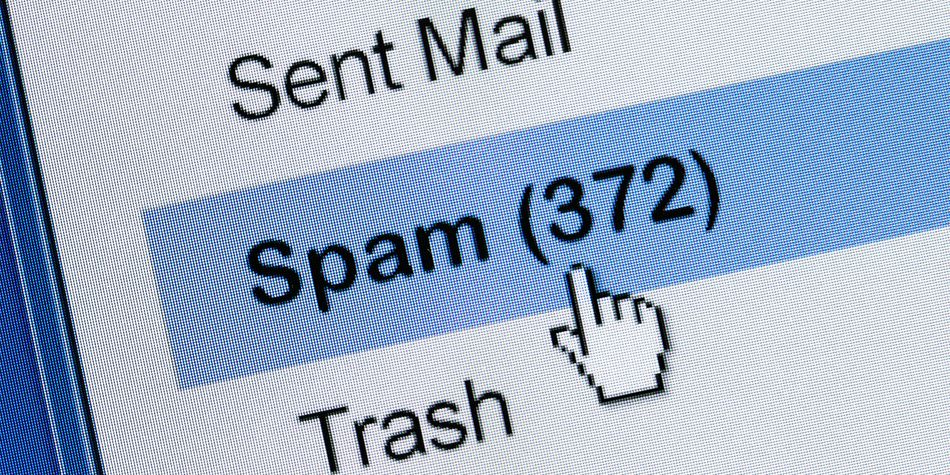
When unwanted emails keep piling up in your inbox, clicking 'unsubscribe' might seem like the quickest way to get rid of them. This is true if it's a genuine marketing email from a company you recognise. But if the message is from a scammer, that link could lead somewhere you don't expect.
Scammers can disguise malicious links as unsubscribe buttons, sending you to fake websites that ask for personal information or login details. Some links could also be used to check whether your email address is active.
When you receive a suspicious email, avoid clicking any links or replying to the sender. Instead, use your email provider's built-in option to report the message as spam or phishing.
You can also create email filters to tackle persistent spam, even when the sender keeps changing their email address. Start with a specific phrase, rather than a broad keyword, to avoid accidentally filtering out genuine messages. It's also worth checking your junk folder regularly if you're waiting for an important email.
Cut through the jargon with our free Tech newsletter.
Our free Tech newsletter delivers tech-related content, along with other information about Which? Group products and services. We won't keep sending you the newsletter if you don't want it – unsubscribe whenever you want. Your data will be processed in accordance with our privacy notice.
5. Forgetting about old apps and online accounts
Think about all the websites and apps you've signed up to over the years. Even if you haven't used some of them in a long time, they could still hold personal information, including your email address, phone number or payment details.
Every account you leave open is another place where your personal information could be exposed in a data breach. Some apps might also still have access to information linked to your Google or Apple account, even if you haven't opened them for months.
Review accounts you no longer need and delete them where possible. It's also worth checking your connected apps and removing access for any you no longer use. Remember that disconnecting an app doesn't necessarily delete the account or any information the company has already collected.
What you need to do next
To check which apps are connected to your accounts, follow these steps:
For your Google account – visit myaccount.google.com and select Security and sign-in > Your connections to third-party apps and services > See all connections. Select an app to review its access, then choose Delete all connections or Remove access if you no longer use it.
For your Apple account (on iPhone) – open Settings, tap your name > Sign in with Apple and select an app to see what information you've shared. Tap Delete and follow the on-screen instructions to remove the connection.
Saving your payment details when shopping online can make checking out quicker, particularly if you regularly buy from the same retailers. But over time, you might end up with your card information saved across lots of shopping accounts, including some you rarely use.
Although many retailers use secure payment systems, there's always a possibility that information held by a company could be exposed in a data breach. Limiting how many websites store your card details is one way to reduce that risk. It's worth reviewing your shopping accounts and removing saved payment methods you no longer need.
'You know when an online shop offers to save your credit card details to make it easier to shop with them? I never do that. It might save me a few seconds at the checkout next time, but I'd rather keep control of where my card information is stored.
'Having to type in my credit card number is worth the peace of mind it gives me to know my card details are less likely to end up being sold on the dark web as a result of a retail hack. Of course, there's no way to eliminate the risk entirely, but the fewer retailers storing my card details, the better.'
Being friendly and helpful is usually a good thing, but scammers can take advantage of people who don't like saying no. Whether you're approached in the street or contacted unexpectedly, fraudsters might use an emotional story to make you feel guilty about refusing their request.
Some scammers will claim they urgently need help, while others might pretend to represent a trusted organisation. They could convince you to hand over money or share personal information. The longer you keep talking to them, the more chances they have to put you under pressure.
Remember that you don't owe a stranger your time or money, no matter how believable their story sounds. If you're suspicious, it's perfectly fine to end the conversation, hang up or walk away. You don't need to explain your decision or worry about appearing rude.
Why it's OK to end the conversation
Lauren Deitz, Which? scams and consumer rights editor
'I'm always careful about sharing personal or financial information with unexpected callers. If someone starts asking for sensitive details, I'll politely end the conversation rather than risk giving something away.
'It's occasionally led to some confused responses from genuine customer service teams, but I'd rather be safe than sorry.'
5 more ways to protect yourself from scams
Trusting websites because they look professional – fake shopping sites can copy familiar branding, display convincing reviews and use HTTPS (which means a website is encrypted, not that it's trustworthy). Check the website address carefully and look for independent reviews of it before buying. Read our guide on how to tell if a website is safe.
Clicking 'Allow' on unfamiliar websites – some scam pop-ups appear after you've given a website permission to send notifications. Think twice before granting access and review existing permissions in your browser settings. Find out how to stop scam pop-ups on Windows.
Scanning QR codes without checking them – scammers can place fraudulent QR code stickers over genuine ones in public places. Check for signs of tampering and look at the website address shown by your phone before opening the link.
Connecting to public wi-fi without checking – a fake hotspot might use a convincing name to trick you into connecting. Confirm the correct network details with staff or permanent signage before joining. Read our tips on how to keep your data safe on public wi-fi.
Rushing to respond to urgent messages – scammers often claim there's a problem with your account or that you need to act immediately. Don't let an unexpected message rush you into clicking a link, sharing information or making a payment. Contact the organisation independently if you're unsure. See here are the links I'd never click.
Join Which? Tech Support
Get tech help from humans
Our friendly team can help you fix tech issues, stay safe online, and get more from your devices. Get 12 months of tech support and buying advice for £49 a year. We’ll help you take control of your tech.
Which? Tech Support can help you keep on top of your home tech. Our experts explain things clearly so that you can resolve issues and feel more confident using your devices.
Get unlimited 1-2-1 expert support:
By phone – clear guidance on choosing, setting up, using and resolving issues with your home tech devices.
By email – outline the issue, and we’ll email you our answer.
By remote fix – we connect securely from our office to your home computer and resolve issues while you watch.
In print – Which? Tech magazine – six issues a year delivered to your door.